How to Organize Tasks Across Email, Calendar and Client Apps
Bring scattered commitments into one planning workflow. Learn what to capture from email and client tools, what to leave there, and how to choose today’s work.
A request arrives in email. A client assigns a task in Asana. Your own follow-up sits in Todoist, and the meeting that affects all three is in your calendar. Each tool holds part of the picture, so choosing what to do next means checking them all again.
The aim is to create a reliable place to decide what deserves your time. Your clients and collaborators can keep their tools while you build a personal daily plan.
Separate incoming information from commitments
An inbox contains messages and updates. Your plan should contain the work you have chosen to do. Treating every incoming item as a task makes other people’s notifications determine your priorities.
For each item, decide whether it needs:
- A quick response or an archive action.
- A concrete task that requires time.
- A later review because it is not ready or not urgent.
- No action from you.
Keep the original source as the place for its conversation and shared project context. Your daily plan holds your next action and the time you intend to give it.
Map where your work arrives
List the email accounts, calendars, and task tools that regularly create commitments. Start with the sources you actually check each working day. Connecting every possible tool is not a prerequisite for organizing tomorrow.
Juno supports connected sources such as Gmail, Outlook, Asana, and Todoist. Available actions vary by provider; consult the integrations overview for your workflow. For a source without a suitable integration, capture the follow-up manually and include a reference to the original item.
Calendar events are existing time commitments. Email and external tasks are potential work. Bring them into the same planning process while keeping that difference clear.
Turn a request into a finishable next action
Consider an illustrative client email: “Can you look at the landing page changes before our call?” Reading the message does not complete the request. A useful task might be “review the landing page and send three recommendations,” with a 45-minute estimate before the call.
In Juno:
- Open the email or external task in its connected view.
- Review the details and decide whether it needs your time.
- Add the item to your plan as a linked task, or drag it into the day planner where supported.
- Give the task a clear next action and a time estimate.
- Check that it fits around your calendar commitments.
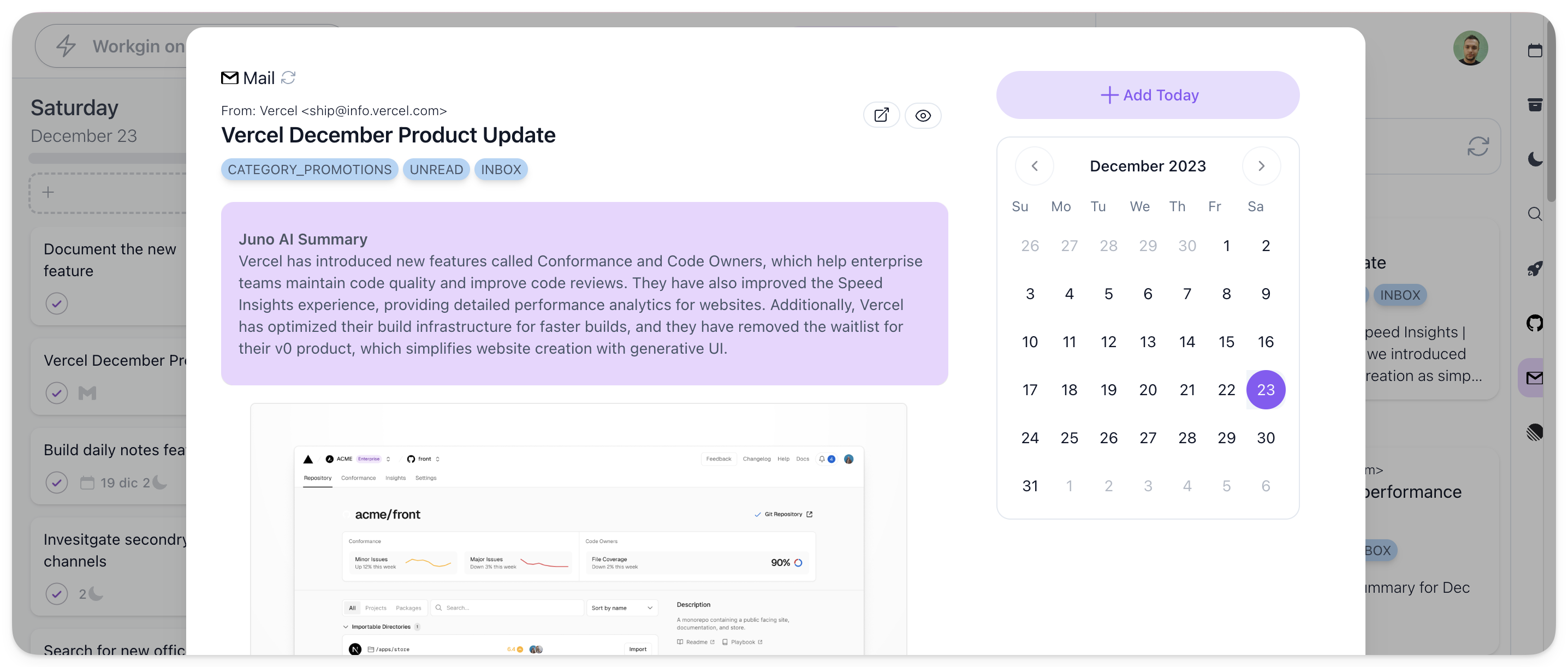
The inbox and integrations guide explains the available flows. Supported providers also offer actions such as replies, archiving, or status updates. Check the actions available in the connected view rather than assuming every provider works identically.
Keep one planned action for one commitment
The same request may appear in an email, a project tool, and a meeting note. Before creating another task, check whether you already have a next action for it. Keep references together where useful.
Distinguish planning your work from updating the shared source. When a client expects a status update in their project tool, confirm that it is reflected there. Linking a task is not a reason to assume every field or action synchronizes automatically.
Review sources at deliberate moments
Choose review times suited to the response times you owe your customers or clients. For example, review before planning, after a focused work block, and before shutdown. If your business requires faster responses, use shorter review intervals and allow time for them.
The goal is to avoid repeatedly checking tools because you do not trust that a commitment was captured. Keep tasks visible, use tags for clients or responsibilities, and revisit the backlog during planning.
Follow the realistic daily planning method to turn those captured tasks into a schedule. The multiple-client guide covers competing deadlines; the freelance marketing workflow applies this to campaigns and approvals.
Keep the plan usable away from your desk
On the web, iOS, and Android, Juno gives you access to your planning workflow. Task reading and edits continue offline and sync when you reconnect. Live email and calendar refresh and first sign-in require a connection; cached calendar events reflect the last successful sync.
See the offline guide before relying on fresh provider data while disconnected.
Do my clients need to use Juno?
Your personal planning workflow can sit alongside the tools they already use. Connect supported accounts you can access and plan your own commitments.
Does every incoming item belong in today’s plan?
No. Capture commitments so you can trust they have a place, then choose today’s work based on priorities and available time.
Bring your next day together in Juno. If you manage the wider business, explore planning for small business owners.